Table of contents
TLDR
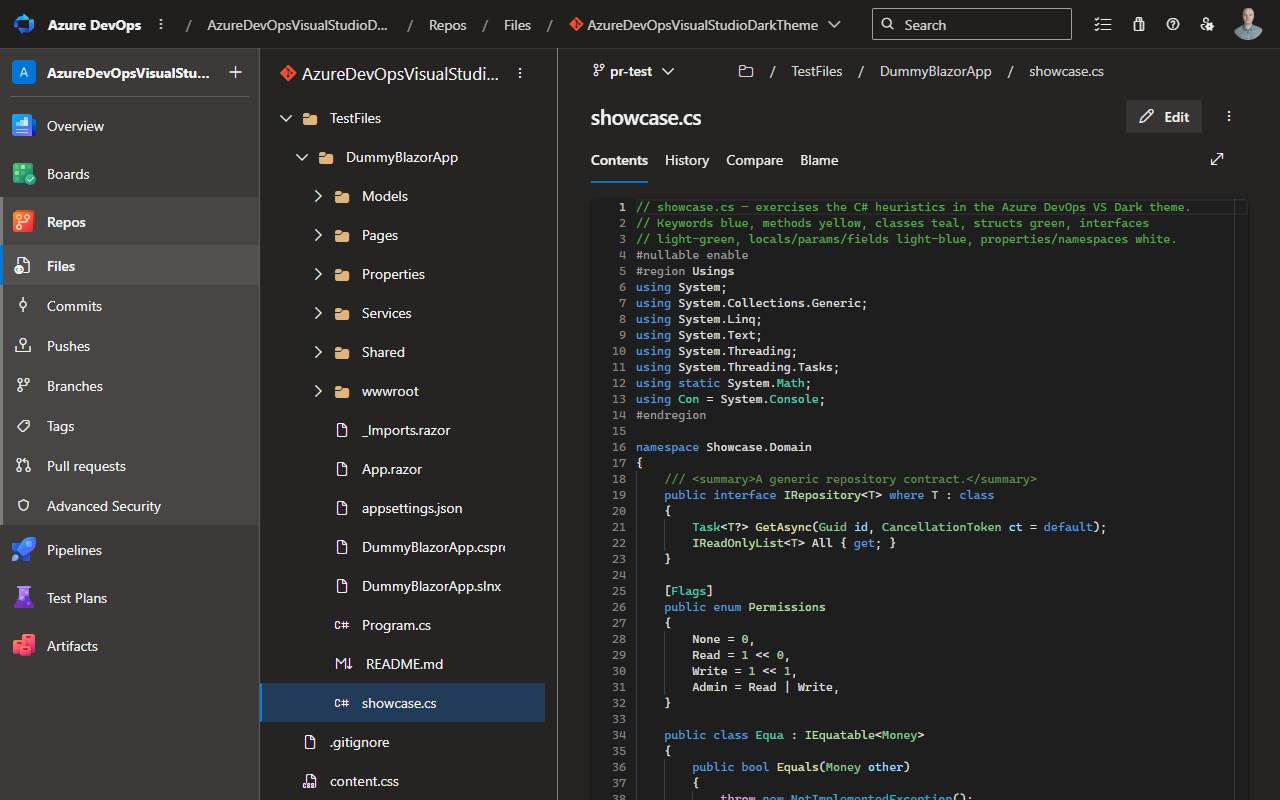
I built a Chrome extension that makes code in Azure DevOps look like it does in Visual Studio: same dark theme colors, same font. It works in the file viewer, commit diffs and pull requests.
Supported file types:
- C#
- Razor / Blazor
- CSS
- SCSS
- JavaScript
- TypeScript
You can install it from the Chrome Web Store here: VS Dark Theme for Azure DevOps
Why I built it
I spend a lot of my day in Visual Studio, and with the coming of AI, a bigger and bigger chunk of my day becomes reviewing code in Azure DevOps. Over the years I have become very used to the Visual Studio dark mode theme.
After years in the same editor I read these colors subconsciously, I see that something is a struct before I read its name. Losing that during code review, which is exactly when you’re reading unfamiliar code, annoyed me.
So I built the thing I wanted: Azure DevOps, but the code looks like it does in Visual Studio default dark mode.
What it does
- Visual Studio dark theme colors for every code surface in Azure DevOps: the Repos file viewer, commit diffs, pull request file views and the all-files summary view
- Custom syntax grammars written to match Visual Studio specifically, not a generic dark theme:
- C# - structs, enums, interfaces, type parameters, properties vs methods, string interpolation with format specifiers, control-flow keywords in purple, XML doc comments
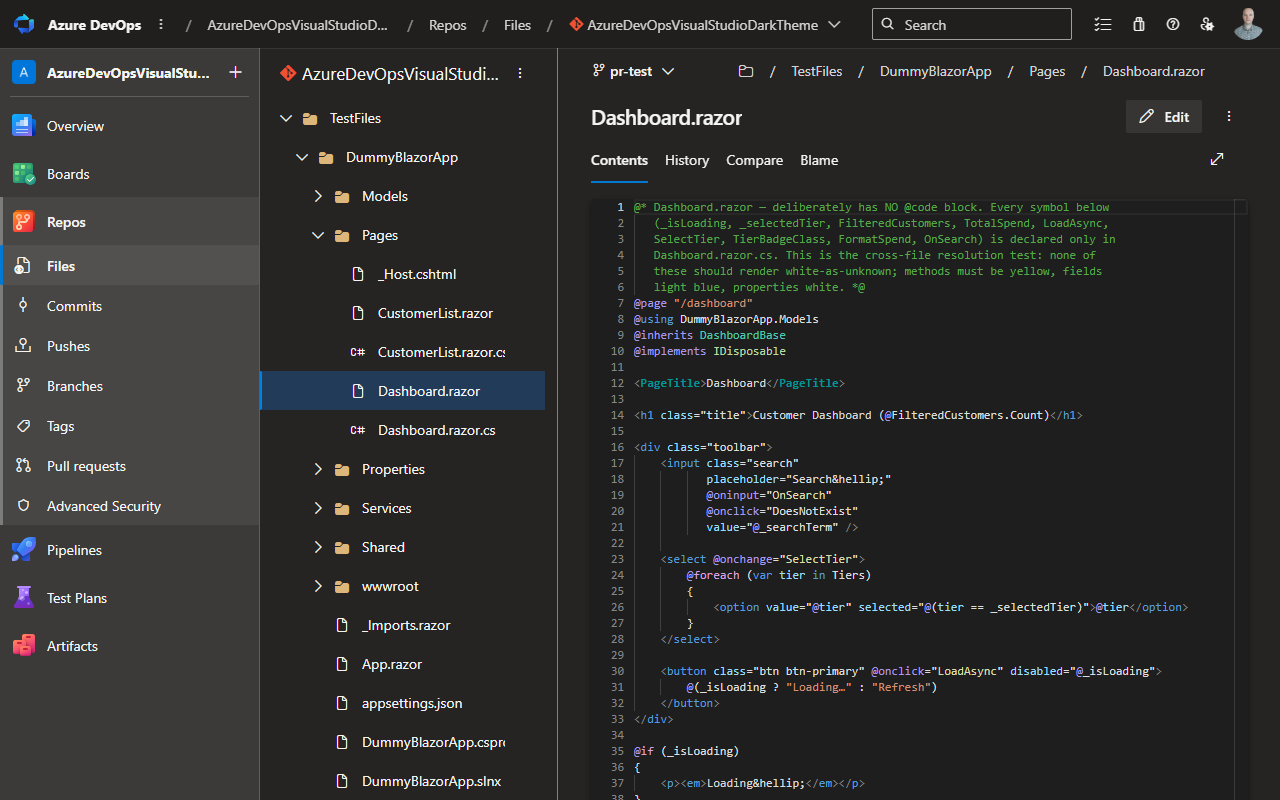
- Razor / Blazor - directives, bold component tags, directive attributes like
@onclickwith their C# expression values highlighted, fully colored@codeblocks - CSS & SCSS - whole-selector coloring like Visual Studio does it,
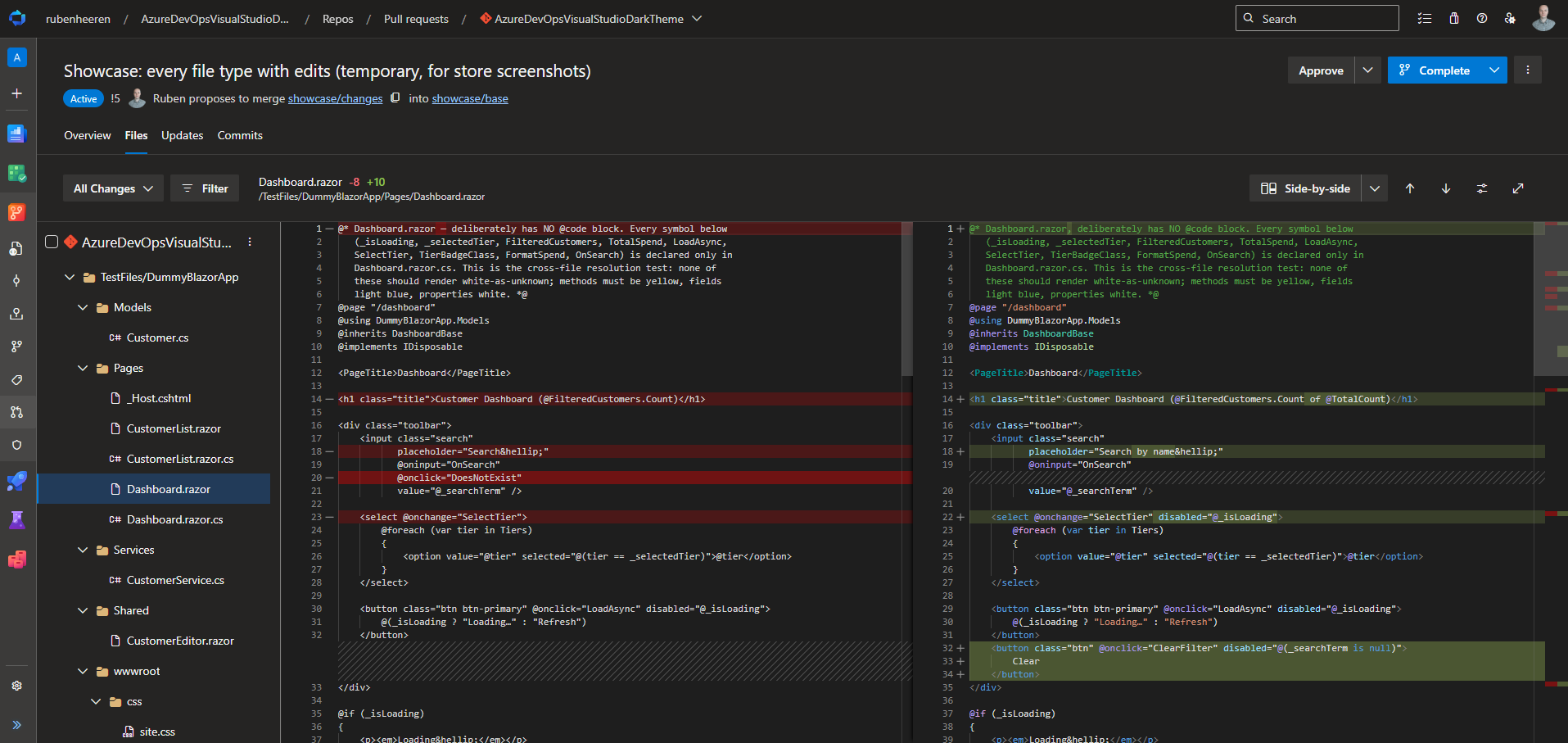
$variables, mixins, interpolation - JavaScript & TypeScript - template literals with highlighted
${}expressions, regex internals, decorators, enums, type annotations
- Cascadia Mono, the Visual Studio editor font
- Wiki and work item code blocks are themed too
How it works
Written with the help of AI, because writing technical documentation is a little boring.
Azure DevOps renders code with the Monaco editor - the same editor that powers VS Code. That was the opening: Monaco has a public API for themes and tokenizers, so a content script running on the page can register its own.
The extension does three things:
- Forces a custom Monaco theme with the exact Visual Studio dark hex values, and wraps
setThemeso Azure DevOps can’t switch it back. - Replaces the built-in tokenizers for C#, Razor, CSS, SCSS, JavaScript and TypeScript with grammars I wrote from scratch. Monaco’s stock C# grammar lumps methods, properties and class names together as “identifier”. To get the Visual Studio look you need much more granular tokens, so most of the work went into heuristics: an identifier before
(is a method, PascalCase after.without a call is a property,IFoois an interface, and so on. - Discovers symbols from context. A tokenizer can’t know that
Moneyis a struct, that’s semantic information. So the extension scans the open document for declarations (struct Money,enum Permission, method signatures) and feeds those names back into the grammar, then re-tokenizes. Close enough to semantic highlighting that you rarely notice the difference.
What about Blazor code-behind?
Blazor components often keep their logic in a separate .razor.cs code-behind file. When you view Dashboard.razor, the markup references fields and methods that are declared in a file the browser has never seen, so how do you color @onclick="LoadAsync" as a method?
The extension runs inside an authenticated Azure DevOps page, so it can simply ask Azure DevOps: when you open a .razor file, it fetches the sibling .razor.cs through the same REST API the site itself uses, scans it for method and type declarations, and re-colors the markup. No extra permissions, no data leaves the page. It’s the same request your browser could make anyway.
The hard parts
Two things fought back more than expected:
- Grammar clobbering. Azure DevOps loads Monaco language bundles lazily, over the network, and each one registers its own tokenizer when it lands, silently overwriting mine. The TypeScript bundle is the largest and can arrive many seconds after the page looks ready. The extension wraps Monaco’s registration API and swallows those late writes, so its own grammars stay in place.
- Razor is genuinely hard to tokenize. It’s HTML and C# interleaved at expression granularity. The grammar has to switch languages inside an attribute value (
@onclick="() => Select(customer)"is markup outside the quotes and C# inside) and detect where an embedded@codeblock ends without being able to count braces. Monarch, Monaco’s grammar engine, turned out to be expressive enough, but it took a lot of state machines.
It works in pull requests too
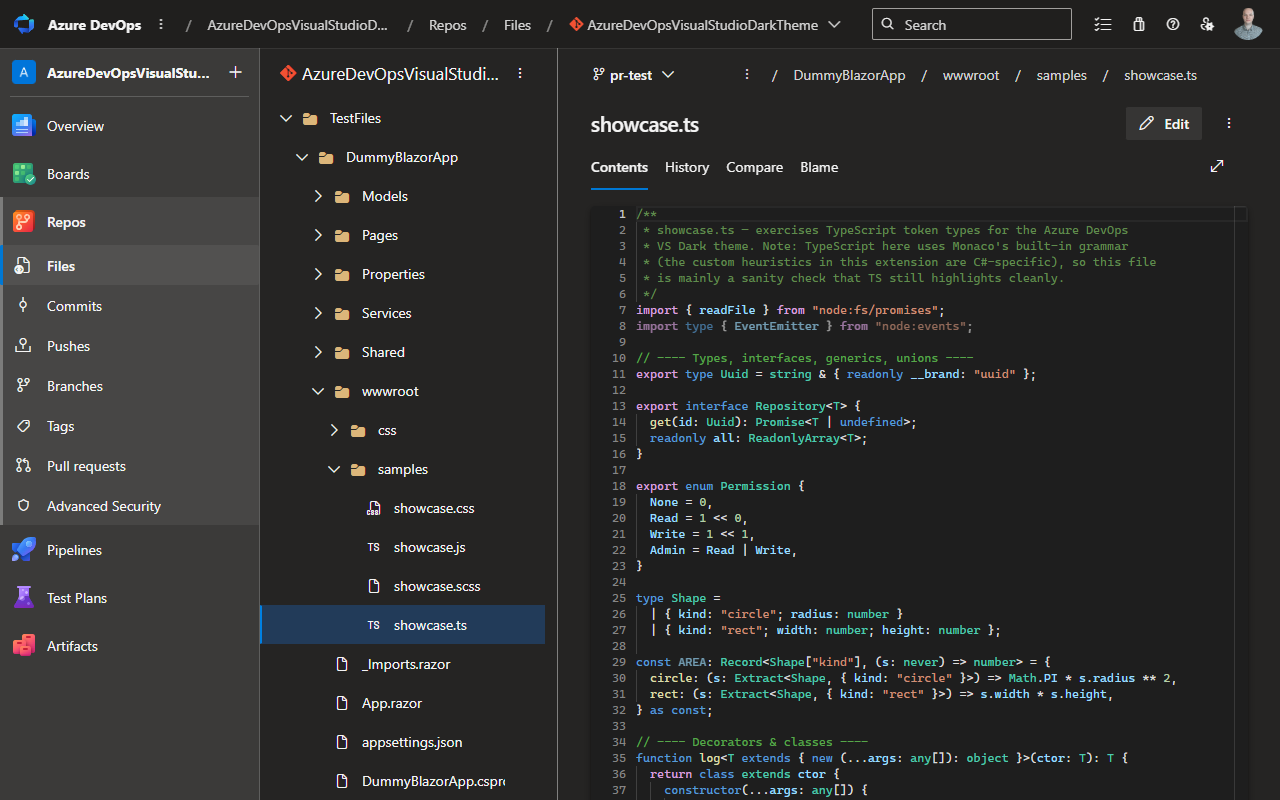
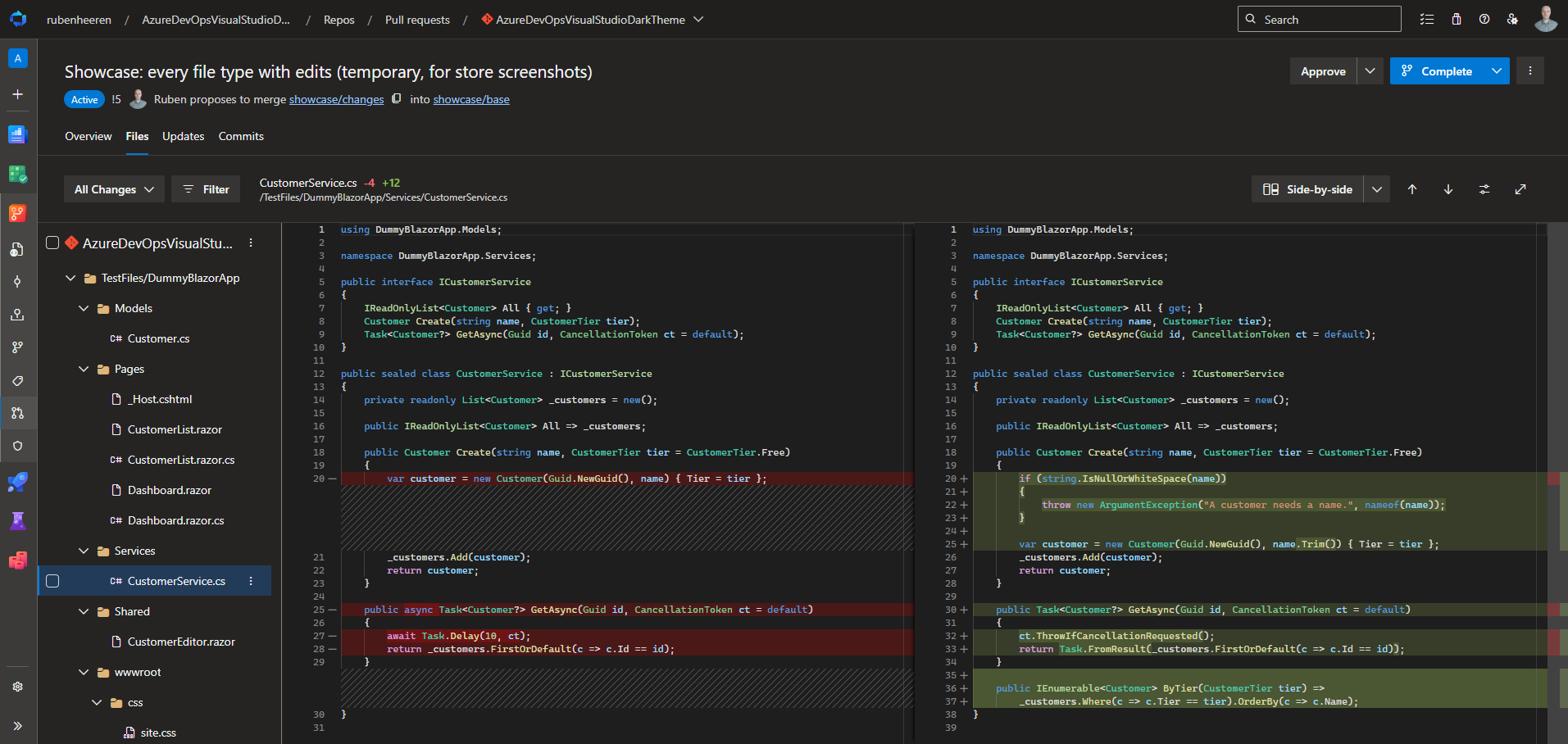
The per-file diff view in pull requests is Monaco-based, so reviews get the full treatment, which was the point of the whole exercise.
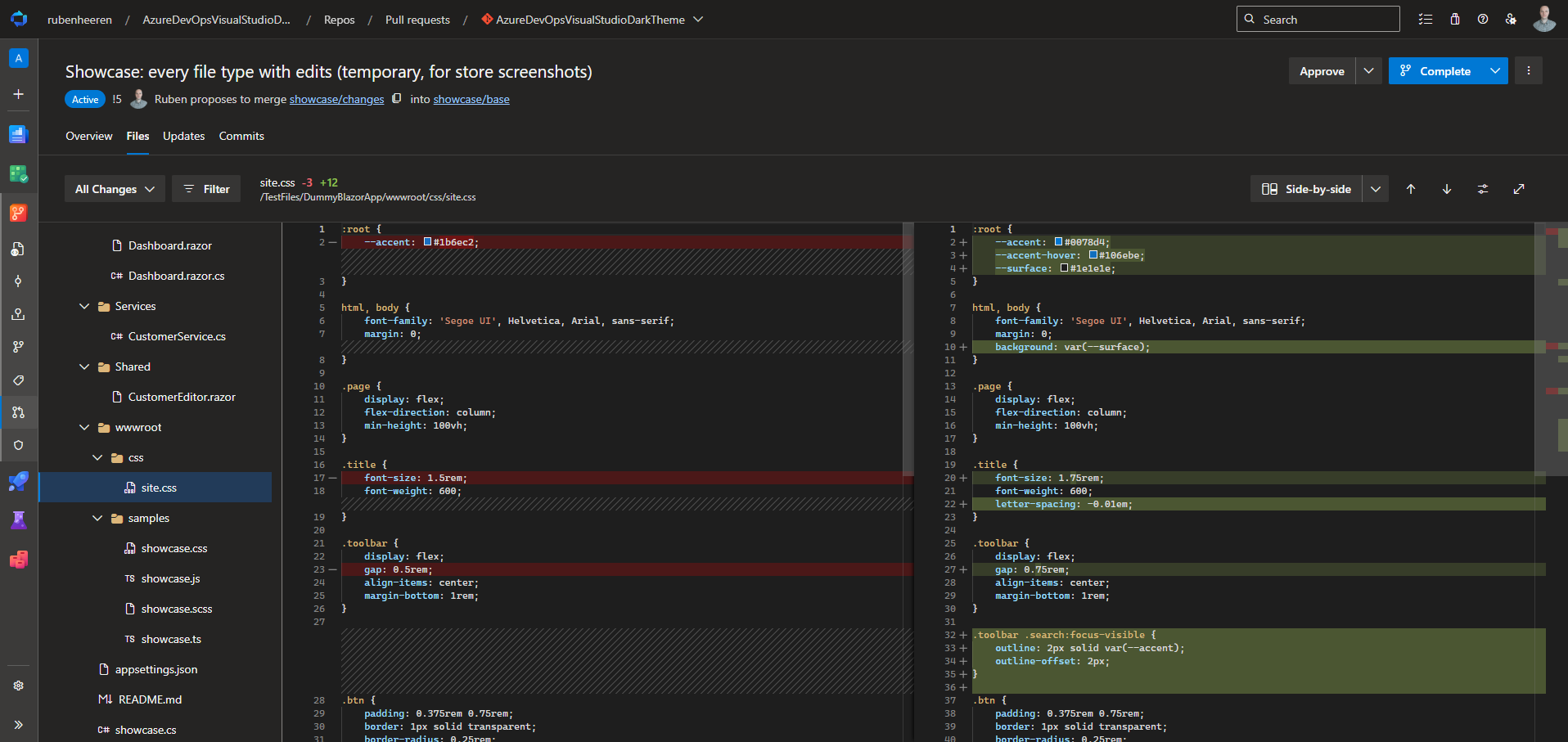
The same goes for stylesheets:
The trickiest surface was the all-files summary view (and the compare view when creating a PR). Azure DevOps renders those as plain text rows without Monaco, without tokens, without any structure to restyle. Even worse, on those pages Monaco isn’t loaded at all. So the extension ships its own copy of Monaco (the editor’s own MIT-licensed engine, bundled right into the extension) and runs my grammars over the raw diff text with monaco.editor.tokenize(), so the summary view gets the exact same colors as the full file view, including things that need state across lines, like @code blocks and block comments. Because Monaco is bundled rather than fetched, the extension ships all of its own code and needs no remote scripts.
Install it
Grab it from the Chrome Web Store: VS Dark Theme for Azure DevOps
It runs only on dev.azure.com and *.visualstudio.com, collects no data, and needs no configuration. Tip: set your Azure DevOps profile theme to Dark (⚙ → Theme) so the UI around the code matches.
If a color looks off for your favorite language construct, let me know. Half of this extension was built by comparing screenshots against Visual Studio one token type at a time.
This extension is not affiliated with or endorsed by Microsoft. “Visual Studio” and “Azure DevOps” are trademarks of Microsoft Corporation, referenced only to describe compatibility.